First time setup
Use Entrim models in OpenClaw for anything you can think of.
Prerequisites
To follow this guide, you need:
- An Entrim account
- An Entrim API key
- An active model plan subscription
- A computer with terminal access (macOS, Linux, or Windows with WSL)
Install and Configure OpenClaw
1. Run Installation Command
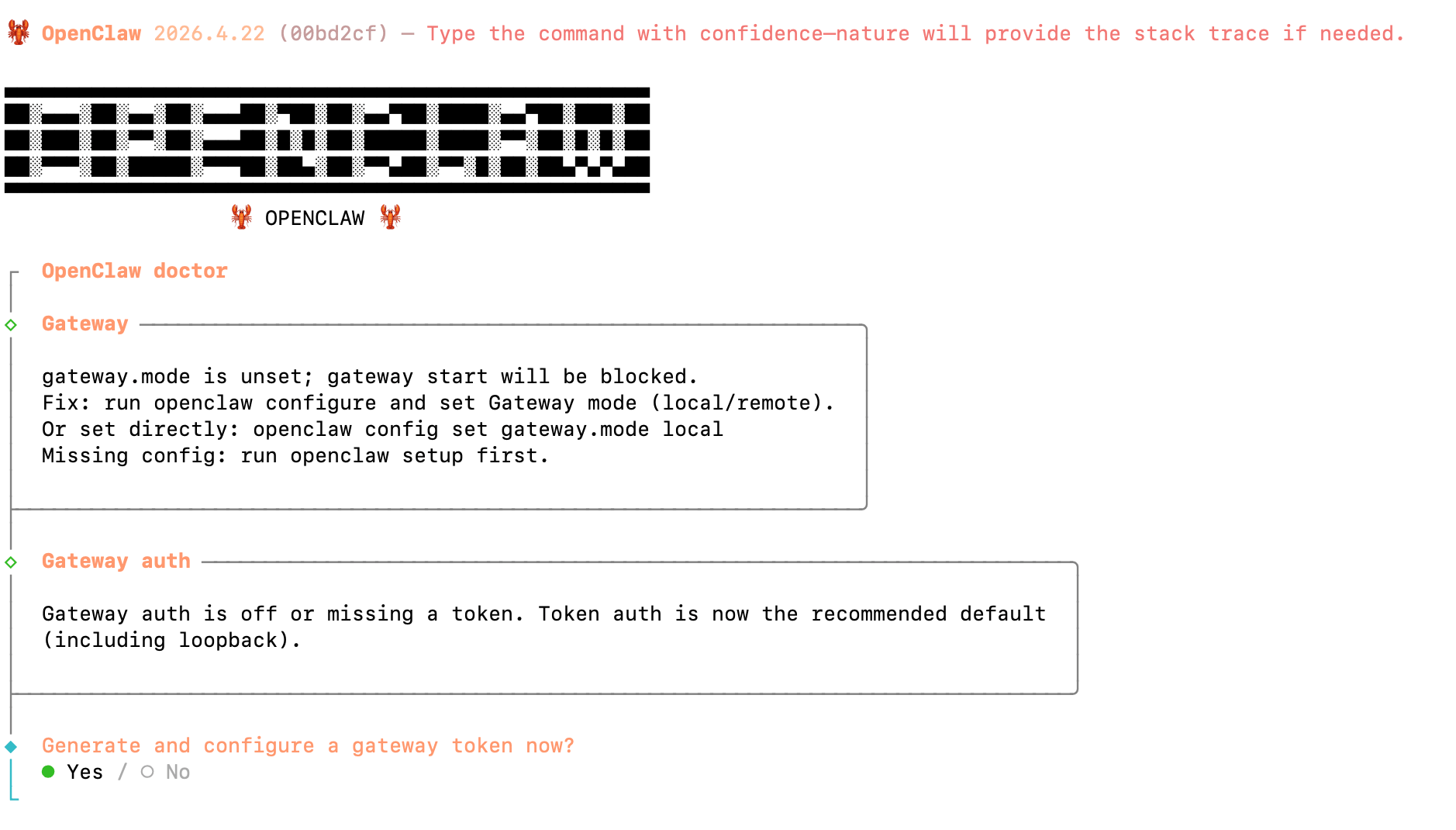
Run the installation command in your terminal:
curl -fsSL https://openclaw.ai/install.sh | bash
You should see something similar:
2. Select QuickStart Mode
Select "QuickStart" to use the guided setup.
3. Select Model Provider
Select "Custom Provider" as the model provider.
4. Enter API Base URL
When prompted for the API base URL, enter:
https://api.entrim.ai/v1
5. Enter API Key
When prompted for your API key, paste your Entrim API key.
You can find your API key in the Entrim Dashboard under API Keys.
6. Select a Model
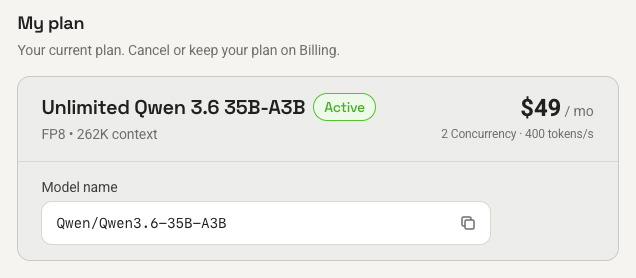
When prompted to choose a model, copy the model name from the plan you subscribe to in the Entrim Dashboard under Plans.
7. Select a Messaging Channel
Select a messaging channel to connect. OpenClaw supports a range of platforms including Telegram, WhatsApp, Discord, iMessage, and more.
8. Confirm Installation
Follow the prompts for your chosen channel, then select "Yes" when asked to confirm.
9. Select Skills
Select any additional skills you wish to install (press space to select, up and down arrows to navigate).
10. Configure API Keys
Configure additional API keys for tools that OpenClaw can use (optional). Select "Skip for now" if you don't need additional tools.
11. Open Web UI
Select "Open the Web UI" to access the OpenClaw dashboard.